Webcam Not Working in Windows 10
Recently updated
Webcams are becoming more and more essential to daily life, especially with the rise of online meetings, remote work, and classes. This is why it can be quite critical (and annoying) if your webcam stops working.
There are two types of webcams: a built-in one that comes with almost any laptop these days, and USB webcams that you can purchase separately and connect to your desktop or laptop computer for more flexibility and better resolution. The problems are almost the same for both types, but we add more tips for external ones at the end of the article, so keep your camera type in mind.
Find the solution below that fits your situation and go one by one until you find the one that works best for you.
Step 1: Check if there is any cover covering the camera
Some built-in and external webcams have sliding covers. Being closed, sometimes it not only blocks vision, it can also completely disconnect the webcam from the computer. It is a good way to ensure privacy and security against hackers, but many users forget this when they have problems with their webcam.
Step 2: Check app permissions
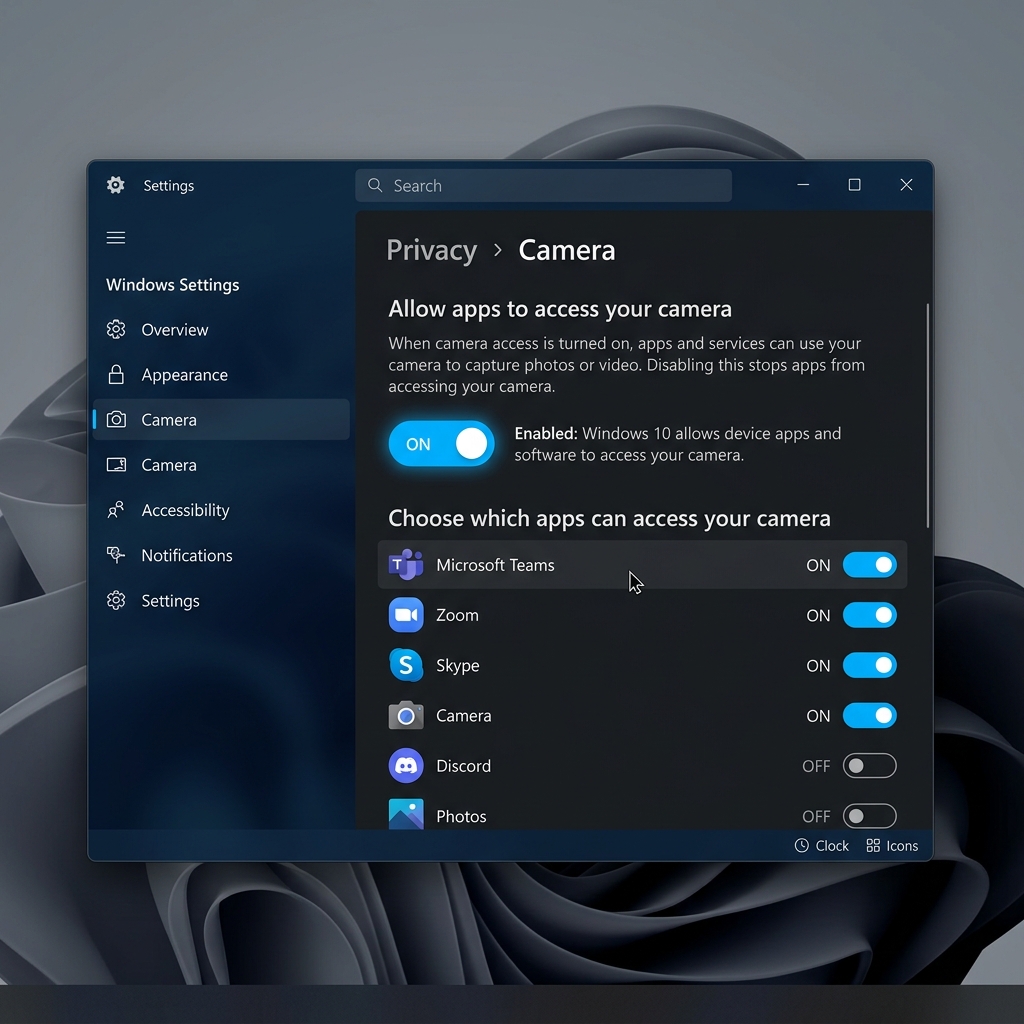
A couple of years ago, Microsoft released an update where an option was added to allow apps to access your camera and microphone, or prevent them from doing so. After this update, the default setting was "disabled". Review this and enable the required permissions:
- Go to Home > Settings > Privacy > Camera
- Click the "Change" button in the first section and make sure it is set to "On."
- Now under “Allow apps to access the camera” make sure the toggle is set to “On” and then you can customize access for each app in the list.
Step 3: Rollback your webcam driver
First, we will try to reset the driver, which means going one step back before the last change or update that happened to the camera, which perhaps could have caused the problem. Please note that this option may not be available if you do not have an update history for your webcam. If so, don't worry and continue to step 4.
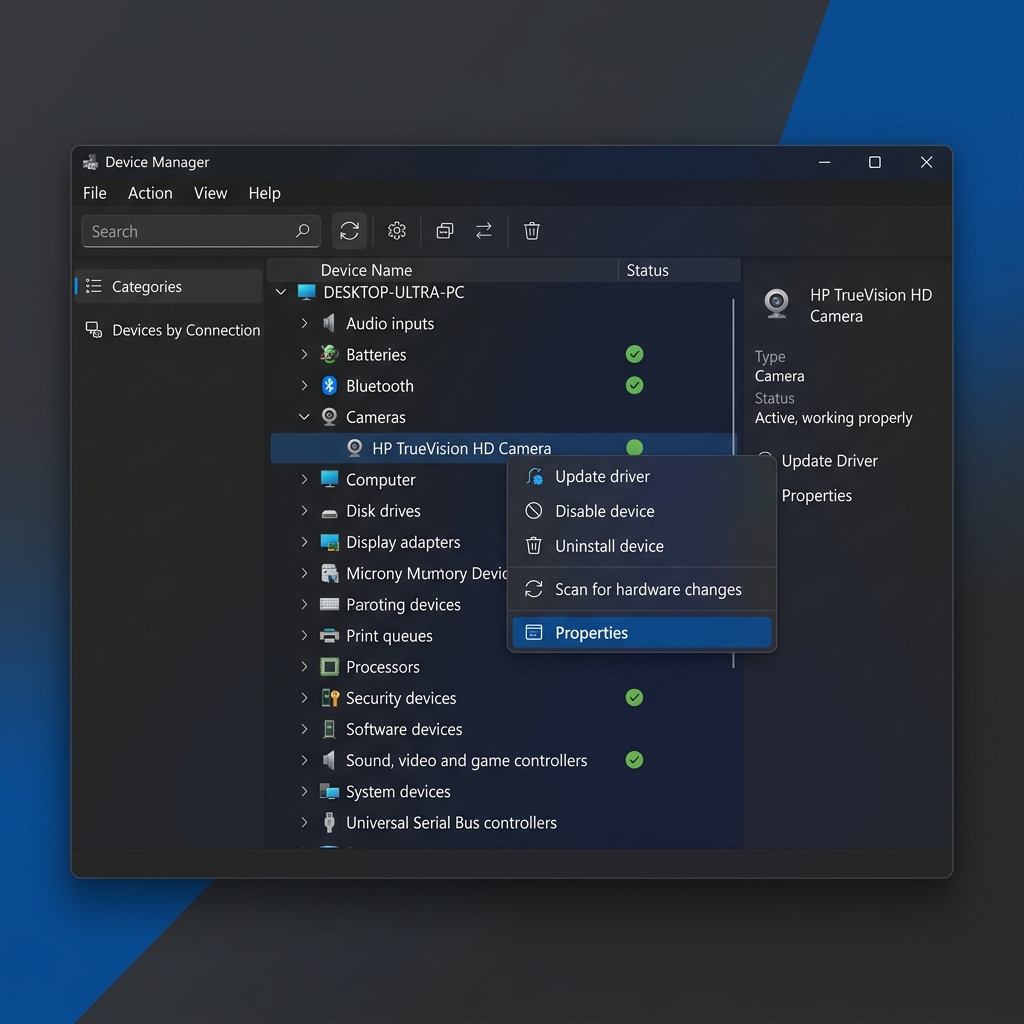
- In the start menu type "Device Manager" and select it from the results.
- Expand "Cameras" or "Sound and video controllers and game controllers," and find your webcam.
- Right click and then click "Properties."
- In the "Driver" tab, click the "Roll back to previous driver".
- Select "The previous version of the driver worked better" and click OK. Then restart your computer.
Step 4: Reinstall the webcam driver
If the rollback option is not available or did not work, our next option is to uninstall the driver, unplug the device, and then restart the computer. Windows 10 scans your hardware at startup and will reinstall any missing core drivers automatically.
- In the "Device Manager", find your webcam.
- Right click on it and then click "Uninstall the device".
- Check the box for "Remove the driver software for this device" and click Uninstall.
- Restart your computer. Remember to check Step 2 again as the default settings may change after reinstalling.
Step 5: Download and install the official driver
Most devices are "Plug and play", and you do not need to install any drivers for them to work. However, for reliability, go to the official website of your laptop or USB webcam manufacturer and download the latest official driver and install it manually.
Step 6: Check your antivirus program
Many antivirus programs are very strict about webcam access. It is highly recommended that you check your antivirus settings, disable it temporarily and test if the camera works. This way you'll know if you need to adjust the permissions of your security software.
Step 7: How to update Windows 10
Constant updates provide more security, new features, and fix hardware problems that users may encounter. Updating Windows is a good way to minimize failures.
- Open Windows Settings from the Start Menu.
- Click the "Update and Security" icon.
- Click check for updates and install any that are available.
Step 8: Troubleshooting for External USB Cameras
- Try using a different USB port, especially if you have USB 2.0 and USB 3.0 ports, try both.
- Try the same webcam on another computer and try using another webcam on your own computer to determine whether the webcam is defective or not.
What is Webcam Not Working in Windows 10 and how does it work?
Recently updated. This free online tool is designed to be fast, secure, and easy to use directly from your browser without any downloads.
How to use this tool
Follow these simple steps to get the best results instantly:
- Select your preferred options or input your data into the panel.
- Click the main action button to start the process.
- Review your results instantly on the screen.
100% Privacy Guaranteed 🔒
We value your privacy. All processing is done locally on your device. No data is ever sent to or stored on our servers.